So you have taken the photo and you have transferred it to your computer, and now what? Most people are in possession of a camera, and most people take good, or even great, photos, but very few do anything more with them. Sometimes I have a small memorial for all the photos sitting on peoples hard drives, without being watched or shared. I light candles and there is a lot of crying. So in order to cut my Kleenex expenses, I decided to do a small post on my editing workflow.

Showing posts with label tutorial. Show all posts
Showing posts with label tutorial. Show all posts
2012-11-05
Photo editing - a general workflow
This guide requires the free editing software GIMP, which you can download here, and also some basic understanding of how to use the program. A good idea before following this guide is to check the basic tutorials on the GIMP homepage.
So you have taken the photo and you have transferred it to your computer, and now what? Most people are in possession of a camera, and most people take good, or even great, photos, but very few do anything more with them. Sometimes I have a small memorial for all the photos sitting on peoples hard drives, without being watched or shared. I light candles and there is a lot of crying. So in order to cut my Kleenex expenses, I decided to do a small post on my editing workflow.
So you have taken the photo and you have transferred it to your computer, and now what? Most people are in possession of a camera, and most people take good, or even great, photos, but very few do anything more with them. Sometimes I have a small memorial for all the photos sitting on peoples hard drives, without being watched or shared. I light candles and there is a lot of crying. So in order to cut my Kleenex expenses, I decided to do a small post on my editing workflow.
2010-12-17
HD movies on Vaio P
The best and the worst thing with the Vaio P is its screen. It is amazingly detailed so those HD-movies you have on your harddrive will look amazing on that screen. Unfortunately the high resolution of the screen means the hardware is going to be put to the test, and since the hardware in the Vaio P is very limited (Intel GMA500 and Atom processor) you might have to do some tweaking.
2010-07-06
The Burn Tool
Now that I finally have some vacation, and some time to write, I thought I compile a short tutorial on one of my most used editing technique. I don't remember how I started using this technique, but I remember reading an article about landscapes. In this article it pointed out that the depth in a landscape photo is created by difference in colours and contrasts in close objects and distant objects. Distant objects are hazy, with subdued colours and little contrast. Objects close to the lens are, in contrast to distant objects, sharp, of vivid colours and much contrast. You can add some depth to your photos by using the burn tool. This tutorial is for GIMP (free download).
2010-06-06
Setting up Jolicloud on the Vaio P
EDIT 2011-03-11: Since this is one of my most popular articles I thought I should update it a bit. Jolicloud is now on version 1.2 and most sections in this tutorial can be skipped (everything in the basic section at least). I'm not going to re-write it at the moment, since I have lots to study, but I will add a tips I found on Ubuntu Forums on how to get scroll to work! Pretty exciting right? I will guide you in the right direction: here is the script and here is how to install it. It has to be run at each boot. I added the script to my startup applications (Dashboard -- Local Settings -- Other Settings -- Startup Applications). Cheers!
2010-01-01
Noise Cleaning and Photo Sharpening
Happy new 2010 to all of my readers! I've been quite busy lately with a lot of anatomy and biochemistry to study but now I'm going to take the time to write a tutorial.
This tutorial presents some basic photo editing that hopefully makes your images look better. Previous tutorials have been written for both Paint.NET and GIMP but this tutorial requires some plugins that are only available for GIMP. Similar plugins exists for both Paint.NET and Photoshop so it's not impossible to use this guide for those programs.GIMP if you intend to use this program. Then download GREYCStoration and install it. If you're on Windows Vista or Windows 7 go to C:\Users\"youraccountname"\Documents\.gimp-"versionnumber"\plugins\ and paste the GREYCStoration executable in this folder. Under Windows XP change Users to Documents and Settings. When you start GIMP GREYCStoration should be under Filters>Enhance>GREYCStoration.
2009-07-30
Tutorial: Make Your Images Stand Out
Despite the boring title this is quite important and you'll be amazed at how easy and how proffesional it looks. This isn't some fake HDR tip, it's much simpler. I have browsed some photo's on Flickr and have come to the conclusion that what you need for your image to stand out is a border.
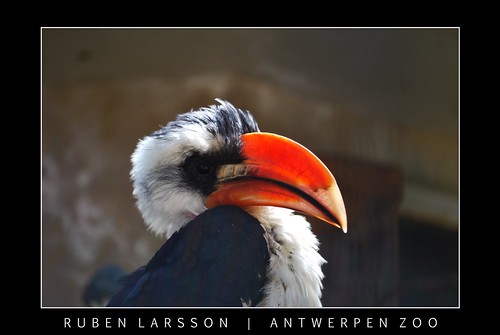
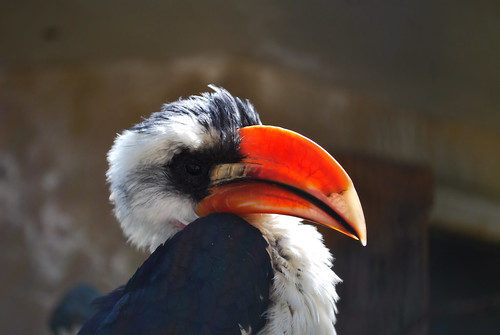
Both images are exactly the same, except for the border. Convinced? Lets start!
Stop laughing! I did the same mistake of underestimating the use of a border. If so, please tell me which you prefer of the two photos:
or
- Open your image in Paint.NET or GIMP.
- To add the first border (I used a white one, please use simple colours/gradients):
- In Paint.NET go to Effects>Render>Borders N' Shapes (if you don't have this plugin installed go to Image>Canvas Size... and increase the size of approximately 120% and remember to center the image. Then choose the rectangle, adjust the pixel width (in the top left) to about 10px (depends on picture size) and use it to create a border.
- In GIMP go to Image>Canvas Size... and increase the canvas size. Check the preview and don't forget to center the image by pressing Center. Go to Select>All to select the image and then go to Edit>Stroke Selection... Choose width (around 10px) and press Stroke.
- Add the second border:
- In Paint.NET use the fill tool to fill the appropriate colour. Remember to set the Tolerance Level (upper center) very low, about 1-3%.
- In GIMP go to Layer>Transparency>Add Alpha Channel and go to the layers palette and add a new layer. Fill the new layer with the wanted colour.
- Add some text:
- In Paint.NET create a new layer and choose the Text tool. Add the text and position it using the Marquee Tool. An alternative way is to use the Center Object plugin.
- In GIMP use the Text tool to add text and reposition it.
2009-01-14
How to Take Photos of the Moon… with a Compact!
This will probably be my last tutorial before I move to Denmark. This will take some time to master and since clear skies are rare I reckon it will take some pictures before you have a decent photo of the moon. If you don't own a D-SLR, a telescope and a fitting adaptor this is what you'll need:
- A compact camera, preferably with manual focus.
- A pair of binoculars or a telescope.
- Tripod.
- Flashlight.
- Optional: carton, tape, glue, rubber etc (in order to build your own adaptor ring; building instructions not included in this tutorial)
- Patience.
- Luck.
If you have all the above we are ready to roll. Put your camera on a tripod. If you use a telescope (which usually has its own tripod) try making an adapter ring that will hold the camera in place. Pair your camera with the binoculars/telescope. Use the built in zoom of your camera to get rid of vignette effects in the corners. If you are using binoculars the easiest way to focus is to use the cameras manual focusing to get the picture sharp. On a telescope you should be able to manually focus using a dial. Take a few test shots in daylight. Pray for clear skies and wait.
When there are clear skies and the moon is up (preferably at a low angle so you won't hurt your back) you are almost ready to take a picture of it. But before you direct your binoculars/telescope at the moon you have to do some more tweaking with your camera. If you have a full manual mode (noted M) you can manually set your exposure. For a full moon I can recommend a setting around 1/600 but for a half moon or less you are alright with 1/250. Remember that the exposure time may vary depending on the optics of the binoculars/telescope (since they let through different amounts of light; 7x50 lets through more light than 7x35 etc) and also how much sunlight is reflected from the moons surface (see below). If your camera hasn't got image stabilization of some sort you better use a timer so pressing the shutter won't spoil the picture. With some luck you just took a brilliant photo of the moon. It is more likely that your focus was a little off or that the camera or binoculars/telescope wasn't perfectly still during the exposure. Try again and again until you are satisfied or tired.

If you don't have full manual control of your camera (which is a more likely scenario considering we are using compacts) we'll have to fool the camera into shortening its exposure time. This is easily done with a flashlight. With your camera manually focused to get a clear picture of the moon remove it from the binoculars/telescope. Direct your camera at the flashlight and half press down the shutter to get an exposure reading of around 1/600 for a full moon or around 1/250 for a half moon. With the shutter still pressed half down, pair the camera with the binoculars/telescope, direct your setup at the moon and press down the shutter. Tada. Chances are it didn't work or that you let go of the shutter button and that's why you need patience and loads of luck.
In order to encourage you not to give up you could visit my photo page on Picasa or click the images below to enlarge. If you look in the description you see that the exposure of the white blob was 1/61" and the exposure of the full moon was 1/60". This is because the blob was photographed when the moon was at a higher angle, which means more sunlight was reflected from the moon which in turn means more light into the camera and shorter exposures are needed to get a good detailed picture.
Come to think of it this was more of a project than a tutorial. You really have to experiment your way to good results. So have fun experimenting!


2009-01-01
Simple Pin-Up Effect
Happy New 2009! I have always liked Pin-Up Posters so why not start the new amazing 2009 with a short tutorial on how to get that 50's look. For this tutorial you need Paint.NET or GIMP. If you decide to use Paint.NET you will have to download Ed Harvey's Plugin Pack). If you are really into Posterizing and its effect download Posterize in HSV Space. In this tutorial I have posted example images to guide you along.
- Open the picture you want to edit and duplicate so you have two identical layers.
- Select the top layer and desaturate it (in Paint.NET: Adjustments>Black and White and in GIMP: Colors>Desaturate…)
- With the top layer selected increase the contrast and fiddle a bit with the brightness too. You want to keep the basic outlines and important shadows.
- With the top layer selected apply some Gaussian Blur (in Paint.NET: Effects>Blurs>Gaussian Blur… and in GIMP: Filters>Blur>Gaussian Blur…). You actually don't want the picture to look completely blurry but slightly softened. (Update1: You can also use some surface blur (Selective Gaussian Blur in GIMP) to soften the shadows)
- Press the eye button to the left of the top layer to make it invisible. Select the bottom layer and posterize it (in Paint.NET: Adjustments>Posterize… and in GIMP: Colors>Posterize…). I find that a value of around 10 works quite good but again it depends on the picture you are using.
- Now we need to use some surface blur to get rid of those sharp looking edges between colours. Surface blur keeps the detail (ie the borders) of an image and only blurs parts with similar colours. In Paint.NET: Effects>Blurs>Surface Blur… and in GIMP: Filters>Blur>Selective Gaussian Blur…. Now this layer should look painted.
- Select the top layer and make it visible again. In layer properties set the blending mode to Multiply. Adjust the opacity of the top layer to your liking.
- The final touch is to give the picture the yellowish look associated with pin ups. Add a new layer and move it to the top. Choose a bright yellow colour of some sort. I used #FFE591 (in hex).
- Set the top most layer's blending mode to Multiply and adjust the opacity until you get the proper look.


You're done! If you want visit DaFont to download some 50's looking font and make your own 1950's ad!
2008-12-13
How to Create Star Trails
For those of you who haven't seen my star trail picture on http://ruub.jalbum.net can check it out here. Because I didn't know if this would work with my cheap Samsung L73 compact camera I decided to only make a 150 second exposure. I obviously read how to do this in Practical Photography, issue November 2008. In Practical Photography they took 120 photos with an exposure of 30 seconds. The photos were of an interesting foreground object with a clear night sky in the background. I didn't have an interesting foreground object so I directed my camera at the night sky and started firing off shots, each with the longest exposure I could get, which is 15 seconds. If you want to make a star trail photo, here is how to do it:
- Check the space on the memory card; you want to take a lot of pictures. I used 10 photos for the final image, and I wished I had taken 50 at least.
- Put your camera on a tripod, directed at the sky. You don't have to direct it exactly at the polar star but it looked great in Practical Photography. I directed my camera NNE and it still turned out great.
- Set your exposure to the longest possible. If you own a compact camera you might want to switch to Night Mode or something similar, to get the longest exposure.
- If you can, set your camera in continuous shooting mode. Then you could use tape to keep the shutter button pressed down. Better still; buy a D-SLR and a cable release to go with it. That's what I'll do when I get richer. If you cannot put the camera in continuous shooting mode at least turn off the automatic preview function so there is as little delay between the pictures as possible.
- Start taking pictures. My camera processor took a while to process each 15-second photo, which can be seen on the original photo as gaps between the stars' different positions.
- After 5:48 minutes I decided it was cold and I wanted to see the result. If you want longer trails you'll have to stay out longer.
Now it's time to combine all these exposures so you get a nice looking trail:
- Open up Paint.NET or GIMP.
- Add all the images into layers. There is no specific order required.
- Change the blending mode of all the layers to Lighten. In Paint.NET select each layer and press F4 and change the blending mode in the bottom of the properties box. In GIMP select each layer and change the blending mode in the layers dock (top right).
- You should now have a star trail. If your camera needed some processing time between each photo, resulting in something resembling LEDs: continue reading.
- Flatten your image (in both Paint.NET and GIMP go to Image>Flatten)
- Select a group of star trails that have roughly the same angle (pointing in the same direction). In Paint.NET go to Effects>Blur>Motion Blur leave the effect to 10px and drag the angle in the circle so that it matches the angle of the selected star trails. In GIMP go to Filters>Blur>Motion Blur… adjust the angle by dragging the angle slider and keep an eye on the effect in the preview window.
- Repeat the above step for all angles of star trails.
The effect is really cool and if you feel like it add a foreground object. Remember to "paint" some light onto the foreground object in the last photo (using a flashlight, flamethrower etc). Actually don't use a flamethrower or if you do don't blame me (but send me the pics).
2008-12-09
Focus Stacking
Not too long ago I was introduced to HDR (High Dynamic Range) photography; a fun and inspiring technique which can, if done properly, give mind blowing results. When you create a HDR you merge a bunch of images with different exposures which results in one picture with a wider range of colours and luminosity, which could not have been created in one picture (unless you shoot in RAW and tweak around a bit). After reading an article on an interesting technique where you merge photos with different focus in this month's issue of Practical Photograpy I decided to try it out. The focus stacking technique is brilliant and here is how you do it:
- Take your camera and put it in manual focus mode (if you have a function dial you can probably find this setting when it is turned to P (program mode), M (manual mode) or something similar; if unsure consult the instructions book that came with your camera).
- Put your camera on a tripod or anything that will prevent the camera from moving around.
- Take your first image with your foreground object in focus.
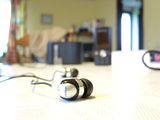
- Take another image where something else important is in focus.
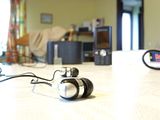
- Take some more photos continuously moving your focus further from the camera.
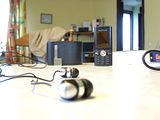
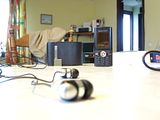
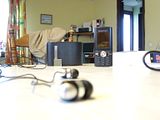
- It is important that the focus goes from macro to micro (close -> further away).
- Download CombineZM and install it. It will run (according to forums) smoothly on a Linux machine using Wine. I don't know if there exists a program like CombineZM for Mac OS X. Update1: On the Focus Stacking Wikipedia page there are some programs listed for focus stacking. Check it out. Those who are afraid of spiders don't check it out.
- Open up CombineZM and in the main (large) window click: File>New.
- Select all the images you wish to include in the final image. Check if the file name of the photo is still the original one, assigned by the camera. This is important since the program uses the numbers in the filename to see which photo comes first, second etc.
- Go to Macro>Do Stack or press Shift+F1. You can follow the progress in the CombineZM Progress window.
- Prepare to be amazed. The image (usually) looks great and resembles those taken with lenses that can handle really large F-numbers.
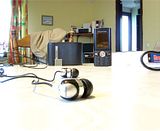


All credit to Practical Photography for inspiring me and to Alan Hadley for programming CombineZM, which is completely free. Next: How to shoot star trails.
2008-12-07
Enhance Clouds in Paint.NET (or GIMP)
I get really annoyed when people (read magazines) post photo editing tutorials which reads: "Try this at home for free" or "Photo editing on a shoe-string" and later refers to Photoshop specific tools. Photoshop CS4 will set you back 7912 DKK (£920, $1351 or €1065), which is a lot. And this assumes you have got Windows or OS X. When I say free I mean free (well you have to pay for the computer and a camera, of course) so let's roll.
Pictures often look very plain and boring if you have a gray sky. The problem is that usually there isn't happening much, contrast wise, in the sky. But there are ways to enhance detail between gray and gray and get more interesting pictures, sometimes even stunning (the example pictures aren't stunning I know). For this tutorial you need the latest version of Paint.NET or download the Curves+ plug-in.
- Open your picture in Paint.NET or GIMP.

- De-noise the image if necessary (In Paint.NET: Effects>Noise>Reduce Noise and in GIMP: Filters>Enhance>Despeckle)
- Adjust the overall contrast and saturation settings to your liking (In Paint.NET: Adjustments>Hue/Saturation and Adjustments>Brightness / Contrast and in GIMP: Colors>Hue-Saturation… and Colors>Brightness-Contrast…)
- Select the sky, since it is uniform use the Wand tool to select it (if it selects too much use the top slider (in the left dock when using GIMP), which is set to 50% by default (15 in GIMP), to decrease the percentage and increase if it selects too little)
- With the sky selected go do Adjustments>Curves+ (in GIMP: Colors>Curves…).
- What you'll see is a diagonal line and a histogram of your selection. By default it is set to Luminosity. The Curves+ window can be resized and I recommend making it bigger so you can see the histogram clearly.
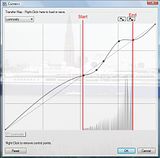
- Lock the diagonal line (by clicking on it) where the histogram starts and ends (use the vertical lines as a guide).
- Lock the line in the middle of the two points you locked in the previous step. Click to the left of the middle point and slightly lower it (this makes darker parts darker).
- Click to the right of the middle point and slightly increase it (this makes lighter parts lighter).
- You can adjust the new curve by clicking and dragging a locked point around. Remember to keep an eye on your picture and don't overdo the effect, it quickly looks fake or edited. Also keep an eye on the foreground to see if the brightness of the sky matches.
- When you're happy with the effect click OK, and press CRTL+D to deselect (Update1: In GIMP use CTRL+SHIFT+A to deselect)



The reason we don't use the Brightness / Contrast in this situation is that we can adjust which gray tones should be lightened and which gray tones should be darkened. Curves+ is by far the best plug-in in Paint.NET so be sure to play around with it. Use the RGB mode to enhance colours (only in Paint.NET), invert luminosity while keeping the original colours (drag the ends of the line to the opposite sides) are some things you can do with ease using Curves+ (only in Paint.NET).
My last example picture was quite boring until I retouched it. Of course it is easier to do this kind of editing if you shoot in RAW as all information is saved. If you shoot in JPEG you will find that some images cannot be fixed as there isn't enough information to work with.
2008-11-16
Create a Slipstreamed Vista DVD
One of life's great annoyances is reinstalling an operating system. Not only do you have to retransfer all your previous files, like documents, but you have to install every single driver and update, including service packs, again. On the upside you have a fresh, fast system that is less likely to piss you off on a daily basis. I decided to have a go at slipstreaming a Vista DVD, including important updates, turning off Windows features I never use, and integrate drivers I always use. This is something I've always wanted to do, but it was not until January this year that I bought myself a copy of Vista Ultimate.
- Download and install vLite. A nifty little program that does all the hard work while you watch a movie.
- To run vLite you have to install WAIK (Windows Automated Installation Kit). Run vLite and a popup will give you the link.
- After WAIK has been downloaded and installed go to its installation path (normally C:\Program Files\Windows AIK\Tools\x86) and copy the files wimfltr.inf and wimgapi.dll to the vLite installation folder (normally C:\Program Files\vLite)
- Start vLite again, if you use an installation DVD, insert it, and select the drive/folder where you have the installation files. In my case F:\.
- Select a place on your hard drive where you want to copy the installation files (this step is only for those of you who have installation files on a DVD, or ISO)
- Under the Tasks tab choose what kind of slipstream you want to make. I checked all of them. Start with the Service Pack integration. Vista SP1 for 32-bit can be located here. Integration took almost one and a half hour on my PC, and this is the part where you fire up a movie and relax.
- The next thing I did was to integrate drivers. I am very happy with my driver set so I used DriverMax (free and very useful) to backup my drivers to a folder (I used C:\User\Ruben Larsson\My Drivers). Then use Insert>Multiple Driver Folder to add all your current drivers to the installation DVD (If you happen to use a nVidia graphics card I recommend a visit to http://www.laptopvideo2go.com/ for latest nVidea drivers, read Modified INF section if your card is not supported).
- You can tweak around a bit, disable things you are not too fond of, like Windows Firewall, Vista Welcome Center and the extremely annoying UAC.
- Finally click Apply to slim it down and use the ISO tab to create an ISO-file or burn a disc.
Piece of cake. And next time you reinstall Vista you do not have to search for driver CDs and download 72 new updates before the computer is usable. I quick reminder: DON'T FORGET TO BACKUP YOUR DATA BEFORE YOU REINSTALL.
UPDATE1: So Vista SP2 has just been released and you can download it from Microsoft's Download section but not too fast! It appears that if you've used vLite to integrate Vista SP1 AND you have deleted components with this program you will not be able to upgrade to the latest service pack. If you just integrated SP1 with your Vista install disc you can do a work around as described on this forum: msfn.com. Looks like I have to do a reinstall or an upgrade (though it's an downgrade in this respect).
2008-10-14
DIY Project: Cool Down Your Laptop

I like DIY (Do It Yourself) projects more than anything. Well, as long as it's simple. Since I had 3/4th of Arctic Silver 5 (thermal paste) lying around and my laptop fan spun up everytime I wanted to watch a video, I decided to open up my laptop and clean the cooling system (copper heat sink and fan). I mean, how hard could it be?
It turns out not very. I know that when the Top Gear team uses the term "How hard can it be" it most certainly ends up with a big crash, lots of smoke and a bill with a very large number on it. So here is my bill (average prices):
- Arctic Silver 5 Thermal Paste – €10.5, £7.5
- Screw Driver Set – €13.3, £9.6
- Anti-static Wristband - €4.3, £3.1
- 99.5% Ethanol – smuggled from a reliable source
- Microfiber Cloth - €2.1, £1.5
- Finehaired Brush – €3.2, £2.3
- A stiff card of some sort. A credit card is perfect.
Tweezers are not on the list and they will really speed up the work, at least if you drop screws all over the place, like me. Another thing that will speed up the final assembly is putting screws in small containers (I used five: heat sink, hard drive bay, screen, CD/DVD, and chassis). And one other thing before you start: set aside at least two hours for this project. I did it in 1 hour 10 minutes but I am fairly experienced.
- Put on your Anti-static Wristband and connect it to any metal surface that has ground contact. Remove the laptop battery and AC cord (we don't want any current in the components when we are fiddling around.
- Remove all screws and panels from the main chassis. If the HDD bay comes loose, or the DVD-burner, gently remove them (pull straight out of socket, don't wriggle it around) and put them somewhere safe.

- Depending on your computer make you should be able to remove the chassis, uncovering the motherboard. Don't be afraid to use some force, but if it gets stuck watch for additional screws before proceeding. I had one extra screw under the HDD bay, and two more where my RAM is installed.
- Remove the heat sink and the fan. Be careful not to loosen any connections on the motherboard. As you can see from the pictures further below it looks like a baby monkey put on the thermal paste. It is way to much, which overflows and traps heat in the CPU and chipset.
- Use the brush to get the dust of the fan. If you want you could open it up even more, or remove it. Just remember to reconnect it to the motherboard if you do.

- Clean the contact areas of the CPU, chipset and heat sink by dropping small amounts of Ethanol on the microfiber cloth and rub the cloth in circles over the contact areas.


- Repeat step 6 until you can see your own face in the contact areas. It should be clinically clean.
- Apply very little thermal paste to the CPU and chipset. Use the card to smear it out evenly over the CPU and chipset. Don't get thermal grease outside the contact area, this will trap heat (the heat sink has no contact with it and therefore the heat cannot escape).
 After you are done put back the heat sink and fan (there should be contact). Screw back the screws, put back the chassis, hard drive and DVD-burner. Put the battery back in and fire up your computer. If you happen to have a CD in the drive you might get a slight shock.
Final note: The temperature decrease will not appear to be noticeable at first (the thermal paste needs about 200 hours to settle) but you will notice it. My computer has an idle temperature of 33°C which is 4°C cooler than it used to be.
2008-09-12
HDR, a New Artform?
To be honest I have seen more wacky HDR images than good ones since I discovered this technique of enhancing the range of exposures in a digital image. HDR is short for, High Dynamic Range, and means that bigger range of values between light and dark parts of the image. When you take a photo of a building the exposure will be adapted to the building, the lighting and colours are shown correct. But if you look at the scene with your own eyes you will probably notice the bright blue sky and maybe some clouds in the background. This is not shown in the image because the camera has a limited range of intensities for a given exposure. By taking multiple shots of the same scene with different exposures, and later merge them into a HDR image you can see a wider range of intensities.

So when I tried this for myself I started to understand why I have seen so many wacky HDR pictures. It is not easy to do (especially if you cannot afford the right software) but there are some guides out there. Personally I like Paint.NET which is a free and very competent program. Unfortunately it cannot merge HDR images natively like Photoshop CS2 and CS3 or Photomatix. Before you run out taking pictures like a madman, remember to bring a tripod. Yes, I know you might feel geeky putting a compact camera on a tripod but it is the only way to take three or more photos looking exactly the same, except for the exposure. Tip number two: don't try to make a HDR picture of moving things, unless you spent £350+ on a camera that saves pictures in RAW.
Those of you who are just too lazy or do not want to spend too much time can check out this tutorial, which only requires one picture. The tutorial is for Photoshop but it works in Paint.NET too. Just make sure to use Overlay instead of Soft Light and put the Opacity level to 110ish for a good effect.
Subscribe to:
Posts (Atom)